You can add simple or complex logic to your survey to show or hide questions/elements, or responses, based on how a respondent answers one or more questions, the metadata on the record, and/or contact center fields. Show/Hide logic ensures the respondent sees only the questions that are relevant to their experience.
To add Show/Hide logic to your form after you've added all sections and questions/elements, navigate to the Logic page within the Build tab of the survey setup interface...
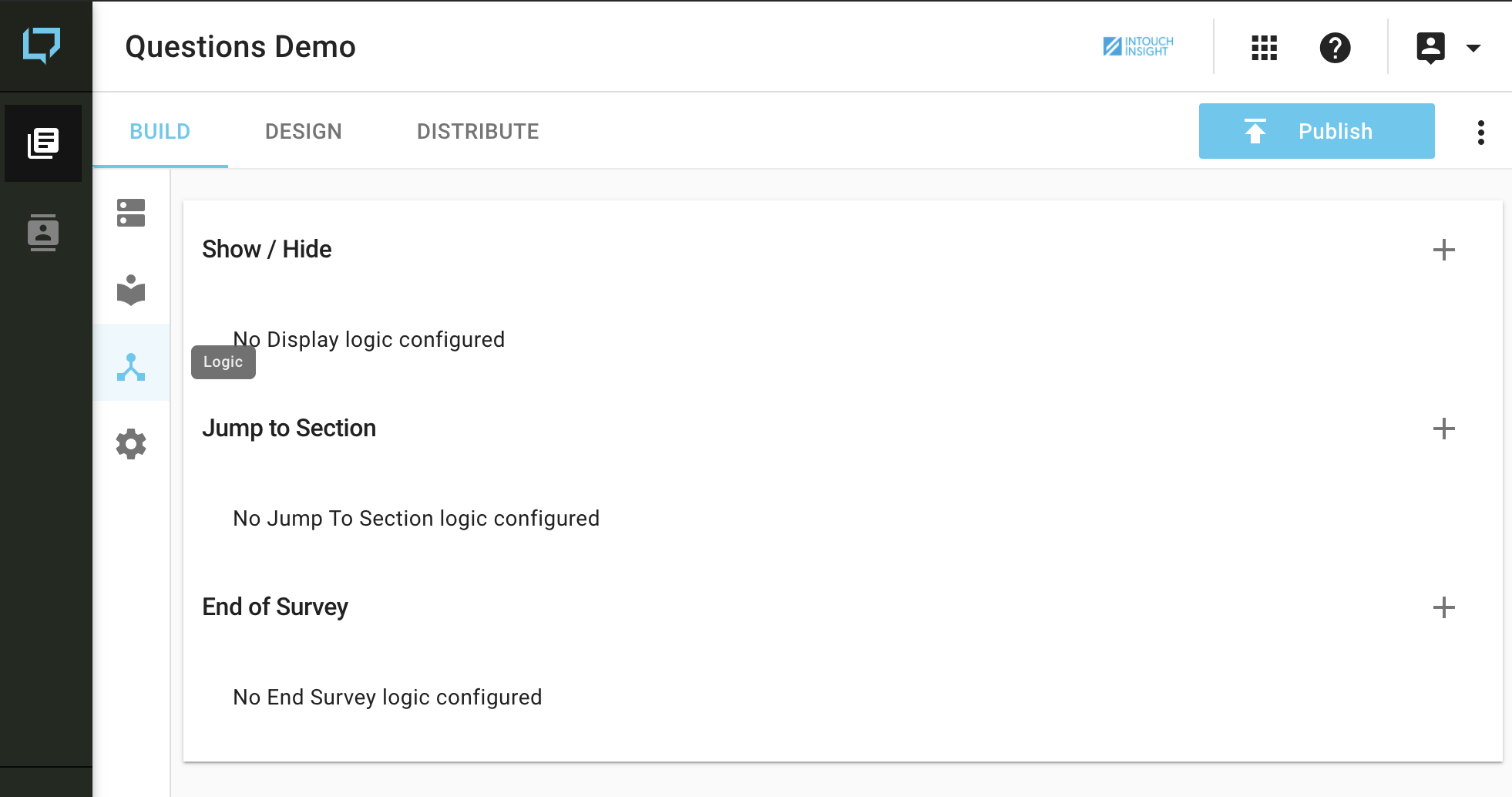
...then click on the Show/Hide + to add a rule.

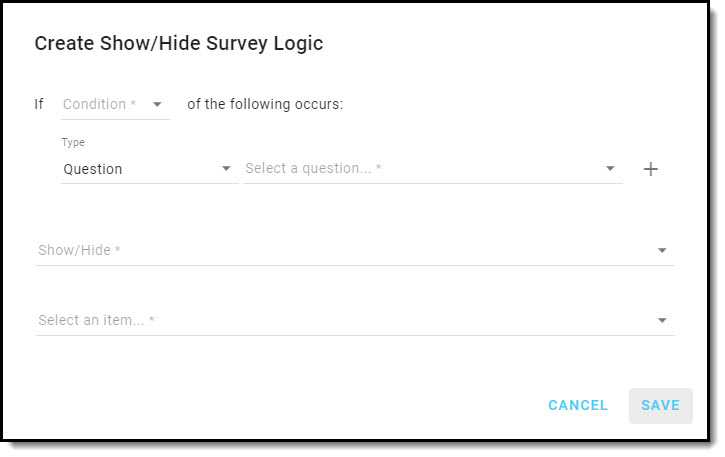
To create your Show/Hide logic:
- Set the condition for the rule. That is, should it apply if any or all of the scenarios specified in the rule occur?
- Then select the type of rule, depending on whether the logic is based on a question/response or metadata on the record.
- Metadata might be added to a record using JavaScript.
- If your rule is based on a question, select the question from the dropdown menu.
- If your rule is based on contact details, select contact from the dropdown menu.
- If it is based on metadata, enter the key for the metadata.
- Click on the + to add more questions or metadata keys to your rule.
- Select the operator for the rule.
- If you choose Equals or Is not equal to you must then specify a response value.
- Choose Is empty or Is not empty if the logic should be triggered when the question is not answered (i.e. empty) or is answered (i.e. not empty).
- If you are using metadata in your rule, you also have the Exists and Does not exist as options for the operator.
- Click on the + to add more operator fields to your rule.
- Choose Show or Hide, whichever is appropriate.
- Finally, indicate which question/element or response on your survey should be shown/hidden.
Click on Save when you are done configuring your rule.
Your rule will be summarized on the Logic main page and, from there, can be edited or deleted.

Be sure to test all your logic/rules in the form preview before publishing and distributing your survey.