The personal information you collect about individual contacts you've added to your Contact Center can help you to target specific contacts with specific surveys.
By default, the following fields are available for contact information:
- First and last name
- Email address
- Phone number
- Language preference
If you require any additional fields to save information about your contacts, you can add custom fields.
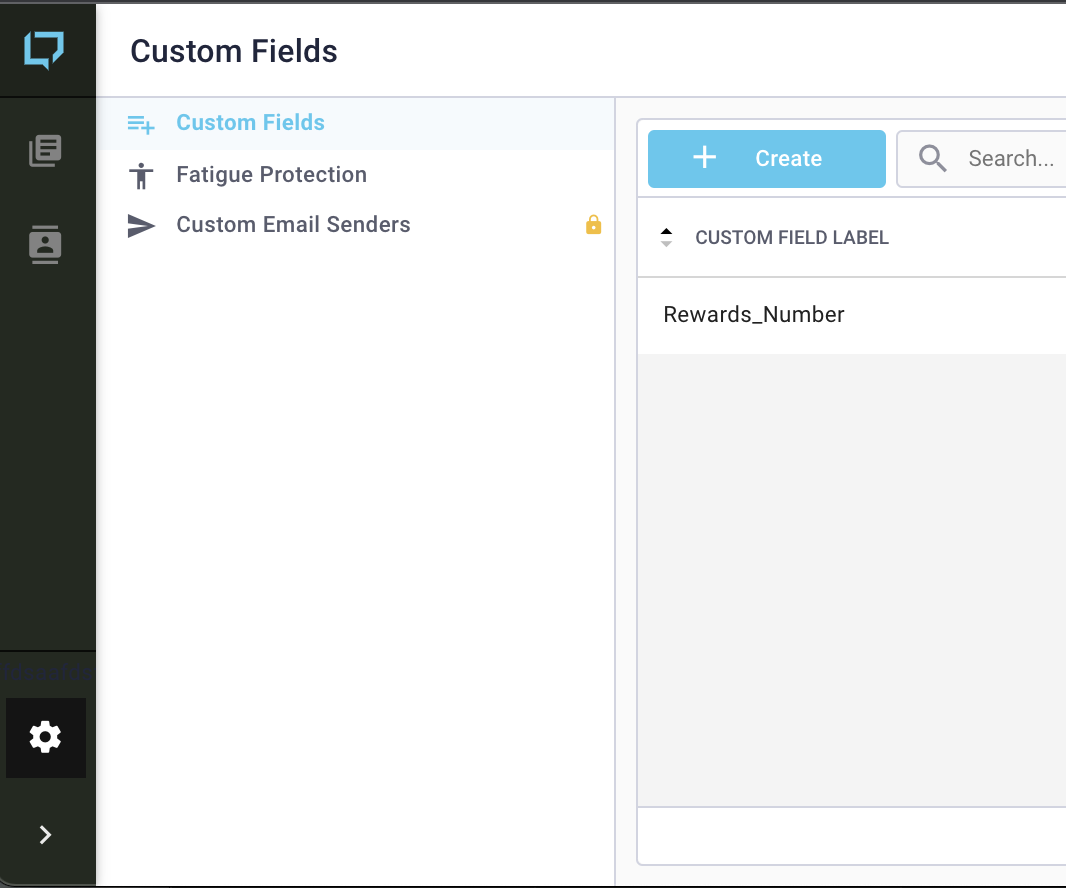
Navigate to the Settings page in Survey Admin. You will land on the Custom Fields tab by default, where you will see all custom fields that have been added.
Click on the + Create at the top of the listing to add a new field.
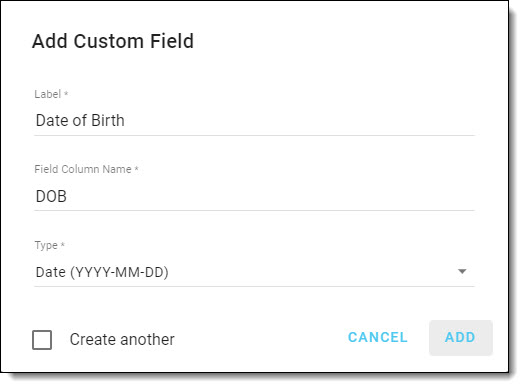
For each custom field you are adding, enter the:
| Label: | This is the name that will be displayed in the Contact Details for this field. |
| Field Column Name: |
This will be the column header in the template for bulk uploading contact details. Only alpha-numeric characters, '-' (dash), and '_' (underscore) are allowed. |
| Type: |
Indicate the type of data that will be entered into the field. Options are:
|
Check the Create another checkbox to continue adding more custom fields after adding this one.
Click on Add.