To customize the layout, background colors, font, branding, etc. on your form, navigate to the Design tab in the survey setup interface.

All changes you apply to the form can be previewed in the right-hand pane on the page.
The Reset Theme button at the bottom of the left-hand pane will clear all design settings that you have applied to your survey form.
Click on Save after you've configured all your survey design settings. If you navigate away from the Design page without saving, your changes will be lost.
Changes to your form will not be "live" until you publish the survey.
 |
Themes |
There are three themes available for your form; Simple, Elegant, and Jazzy.
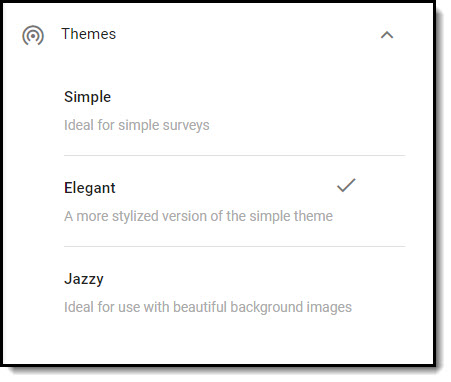
Simple
A compact theme, which is ideal for short/simple surveys, or for surveys that will always be viewed on a mobile device.
Elegant
The default theme, which is a more stylized version of the simple theme, has wider margins on the pages and works well on all types of devices.
Jazzy
When the Jazzy theme is applied, each question is displayed in a container, and is preceded by a Q so that it will standout from the other elements on the form. Because of the containers, background images and colors and are more noticeable.
 |
Layout |
There are several options available for configuring the layout of your survey.
Options may vary depending on which theme you've applied to your form.
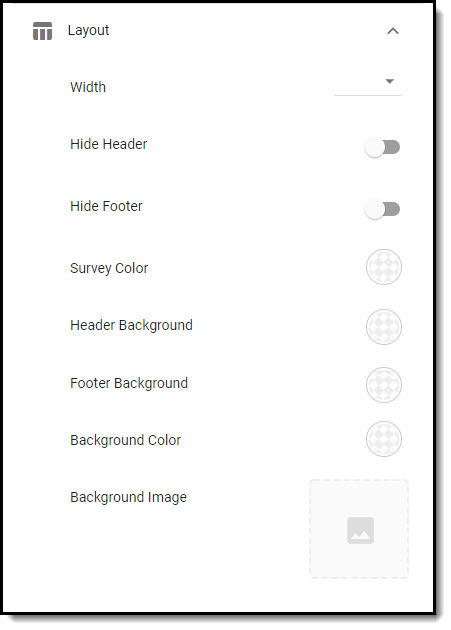
Width
Adjust the width of the survey page, relative to the screen width. Options range from 60% to 100%. The default width of the survey page is 70%.
Hide Header/Footer
Toggle these settings on to remove the wide margins above and/or below the survey page.
Survey Color, Header/Footer Background, Background Color
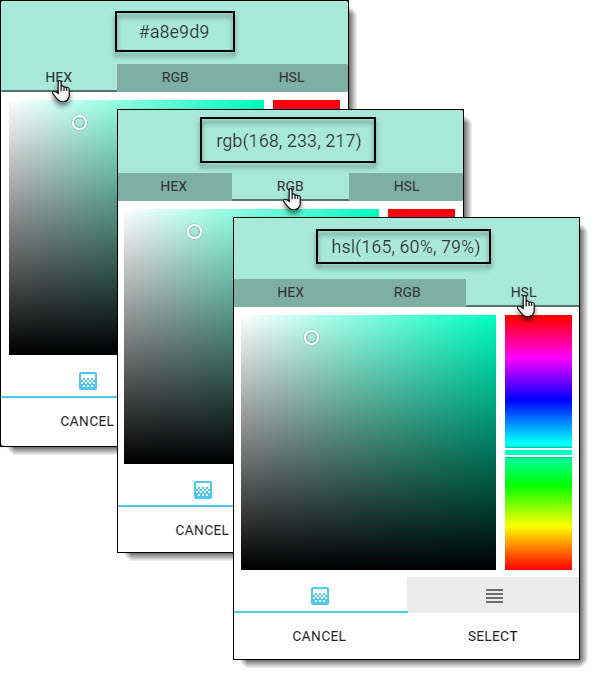
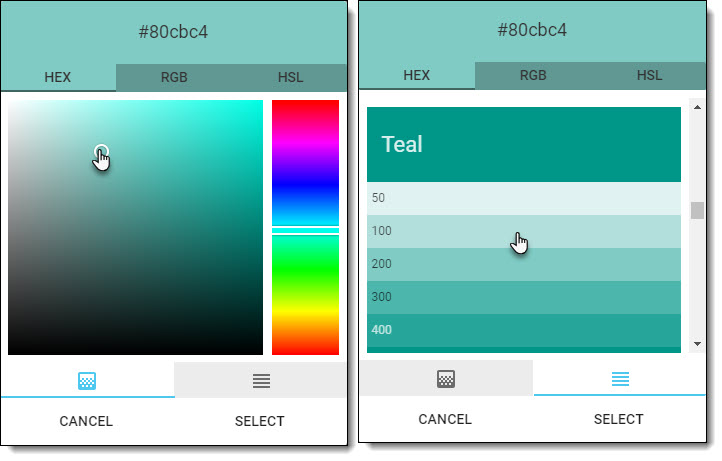
Customize the colors of the survey page, header and/or footer, and background using the color picker feature.
|
|
To pick a color:
|
|
|
 |
|
|
|
 |
|

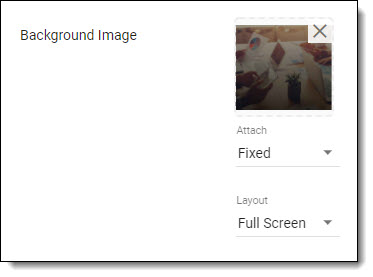
Background Image
You can upload an image to be displayed behind the survey page.
|
|
If you upload a background image, you have several options to control how the image appears on your survey. To upload a background image
|
 |
|
| You can then configure the settings that control how the image will appear on your survey. | |
|
Fixed: The image will remain in a fixed position as the user scrolls up/down on the page. Scroll: The image will move with the form as the user scrolls up/down the page. |
|
Full Screen: The image will be resized to fit the entire background area on the screen. Original Ratio: The original size of the image will be used on the background area. |
|
The Position settings are only available if you choose Original Ratio for the image layout. The image can be Top, Center, or Bottom aligned on the background area. |
 |
Text |
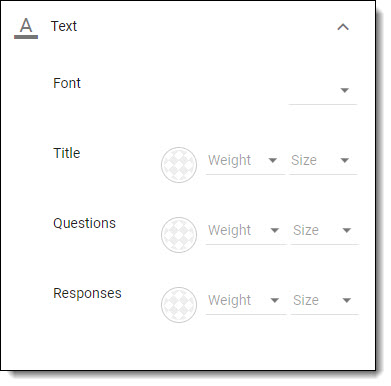
There are several options available for configuring the text on your survey.
Font
Choose the font you would like to use for your survey.
Color, Weight & Size of Survey Title, Questions & Responses
Color: Customize the colors of the title, question, and/or response text using the color picker feature.
Weight: Choose normal or bold for the title, question, and/or response text.
Size: Indicate the font size for the title, question, and/or response text.
 |
Branding |
There are several branding options available for further customizing your survey.

Brand Primary Color
Use the color picker to apply a color to the buttons, checkboxes, multiple choice/radio buttons, etc. on your survey.
Header/Footer Logo
Upload your organization's logo to the header or footer of your survey.