 |
Use piped text to insert custom/dynamic content, such as a contact's first or last name, a value from a custom contact field, or a date or time, into an element label. |
To insert piped text into your element label, click on the [A] in the label field; you can then choose from a list of Contact or Calendar values.
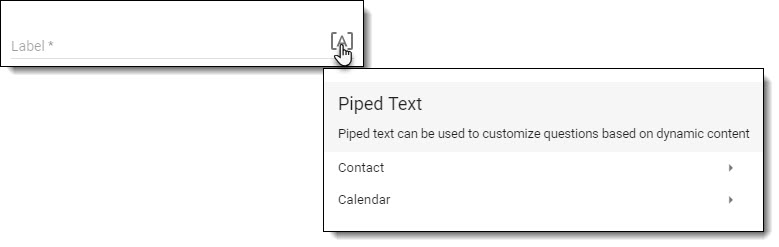
Contact
Before you will be able to include contact details as piped text in your survey, you must update the survey settings to allow for this behavior.
|
Note: This feature is disabled by default so that your contact's data remains private at all times, even if they accidentally post their unique survey URL publicly. Enabling this feature will allow anyone with access to the contact's unique survey URL to see their default contact field values as well as any public custom contact center field values which may include sensitive data. |
To enable this option navigate to Settings > General within the survey editor.

Enable the "Allow contact information to be included in survey piped text" setting.
The contact values are pulled directly from the contacts that have been added to the Contact Center.
You can insert the following contact values into your element label:
- First Name
- Last Name
- Phone Number
- Language
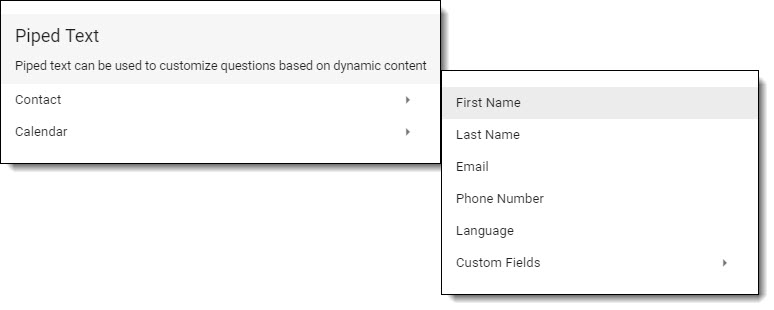
If there are any public custom contact fields that have been set up, you can also insert those values into a label.

Calendar
Calendar values can be used to insert a day, date, time, etc. into your element label.
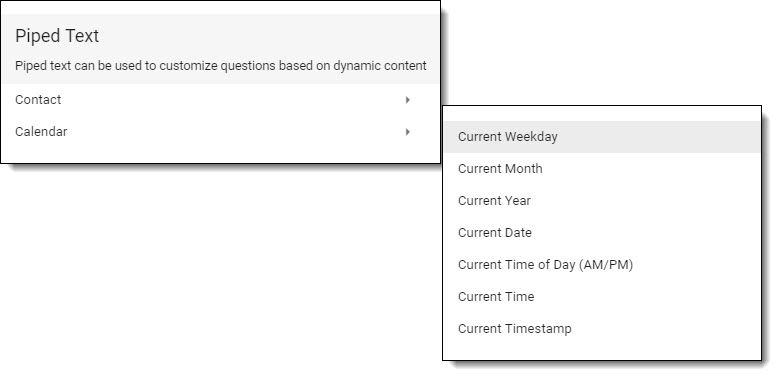
You can insert the following calendar values into your element label:
- Current Weekday
- Current Month
- Current Year
- Current Date
- Current Time of Day (AM or PM)
- Current Time
- Current Timestamp