If you are distributing a survey by email via the contact center, you can embed an NPS®, Rating, Multiple Choice, or Checkboxes question from your survey into the email. The survey will launch as soon as the recipient selects a response for the question.
There are two steps that are required when embedding a survey question into an email:
- Add JavaScript (JS) to the question
- Add the HTML to the email
JavaScript (JS) and HTML are programming languages that are read, interpreted, and executed in your web browser or email application.
 |
Please contact us if you need assistance adding the JavaScript or HTML. |
Add JavaScript
To add the JavaScript to the survey question you would like to embed in your email:
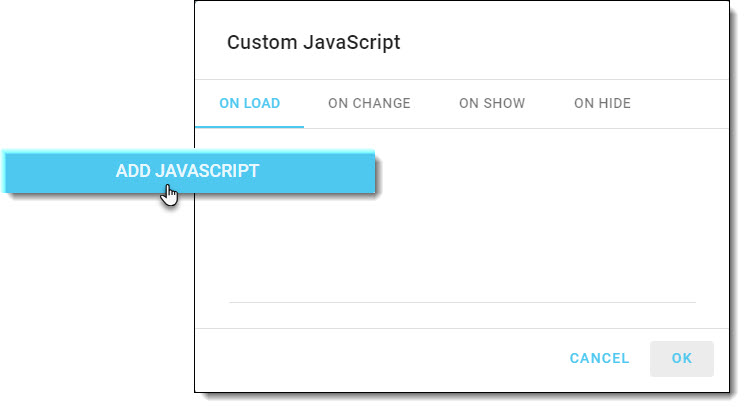
- Click on Add JavaScript in the question/element settings.
- On the ON LOAD tab enter the JS for that particular question type (provided below) and click on OK.
- Save the question/element to complete the process.
Add HTML
To add the HTML to the email:
- Navigate to the Distributions tab and click on Email in the left-side menu.
- In the list, click on the email you are updating (or compose a new email).
- In the email content editor, click on Code View to view the source code for your email.

- Insert the HTML for your question (examples below) in the appropriate place.
- Delete the BEGIN SURVEY HTML from the code if you do not want the recipient to also be able to launch the survey using the button.

- Click on Code View again to return to the standard view for your email.
- Save your changes.
NPS Question
JavaScript
For NPS questions, add the following JS to the ON LOAD tab.
- This must be entered exactly as shown below.
var question = this;
var params = {};
var parts = window.location.href.replace(/[?&]+([^=&]+)=([^&]*)/gi, function(m,key,value) {
        params[ key. toLowerCase() ] = value;
});

    if( params.nps && params.nps >= 0 && params.nps <= 10 ){
        question.setValue( parseInt( params.nps ) );
    }
HTML
For NPS questions, add the following HTML in the code view of your email.
- You will have to add your question text in the first line of the HTML.
<p><strong>Enter your question text here</strong></p>
<div style="float:left; margin-right:20px;"><a href="[[SURVEY.LINK]]&nps=1" target="_blank">1</a></div>
<div style="float:left; margin-right:20px;"><a href="[[SURVEY.LINK]]&nps=2" target="_blank">2</a></div>
<div style="float:left; margin-right:20px;"><a href="[[SURVEY.LINK]]&nps=3" target="_blank">3</a></div>
<div style="float:left; margin-right:20px;"><a href="[[SURVEY.LINK]]&nps=4" target="_blank">4</a></div>
<div style="float:left; margin-right:20px;"><a href="[[SURVEY.LINK]]&nps=5" target="_blank">5</a></div>
<div style="float:left; margin-right:20px;"><a href="[[SURVEY.LINK]]&nps=6" target="_blank">6</a></div>
<div style="float:left; margin-right:20px;"><a href="[[SURVEY.LINK]]&nps=7" target="_blank">7</a></div>
<div style="float:left; margin-right:20px;"><a href="[[SURVEY.LINK]]&nps=8" target="_blank">8</a></div>
<div style="float:left; margin-right:20px;"><a href="[[SURVEY.LINK]]&nps=9" target="_blank">9</a></div>
<div style="float:left; margin-right:20px;"><a href="[[SURVEY.LINK]]&nps=10" target="_blank">10</a></div>
Rating Question
JavaScript
For Rating questions, add the following JS to the ON LOAD tab.
- This example is for a standard 5-star rating question.
- If you have more/less than 5 stars, change the value (in red below) to the highest possible response.
var question = this;
var params = {};
var parts = window.location.href.replace(/[?&]+([^=&]+)=([^&]*)/gi, function(m,key,value) {
        params[ key. toLowerCase() ] = value;
});

    if( params.rating && params.rating >= 0 && params.rating <= 5 ){
        question.setValue( parseInt( params.rating ) );
    }
HTML
For Rating questions, add the following HTML in the code view of your email.
- You will have to add your question text in the first line of the HTML.
- This example is for a standard 5-star rating question.
- If you have more/less than 5 stars, adjust the number of responses in your code.
<p><strong>Enter your question text here</strong></p>
<div style="float:left; margin-right:20px;"><a href="[[SURVEY.LINK]]&rating=1" target="_blank">1 star</a></div>
<div style="float:left; margin-right:20px;"><a href="[[SURVEY.LINK]]&rating=2" target="_blank">2 stars</a></div>
<div style="float:left; margin-right:20px;"><a href="[[SURVEY.LINK]]&rating=3" target="_blank">3 stars</a></div>
<div style="float:left; margin-right:20px;"><a href="[[SURVEY.LINK]]&rating=4" target="_blank">4 stars</a></div>
<div style="float:left; margin-right:20px;"><a href="[[SURVEY.LINK]]&rating=5" target="_blank">5 stars</a></div>
Multiple Choice Question
JavaScript
For Multiple Choice questions, add the following JS to the ON LOAD tab.
- This must be entered exactly as shown below.
var question = this;
var params = {};
var parts = window.location.href.replace(/[?&]+([^=&]+)=([^&]*)/gi, function(m,key,value) {
        params[ key. toLowerCase() ] = value;
});

    if( params.radio ){
        question.setResponse( decodeURI( params.radio ) );
    }
HTML
For Multiple Choise questions, add the following HTML in the code view of your email.
- You will have to add your question text in the first line of the HTML.
- Below the question, you will need one row of code for each response in your question.
- Add the response text in each line.
- The response text appears 2 times in each line of code.
- If the response contains multiple words, used %20 between each word in the first instance of the response. E.g. Below%20Average followed by Below Average.
<p><strong>Enter your question text here</strong></p>
<div style="float:left; margin-right:20px;"><a href="[[SURVEY.LINK]]&radio=Response%20Text" target="_blank">Response Text</a></div>
<div style="float:left; margin-right:20px;"><a href="[[SURVEY.LINK]]&radio=Response%20Text" target="_blank">Response Text</a></div>
<div style="float:left; margin-right:20px;"><a href="[[SURVEY.LINK]]&radio=Response%20Text" target="_blank">Response Text</a></div>
<div style="float:left; margin-right:20px;"><a href="[[SURVEY.LINK]]&radio=Response%20Text" target="_blank">Response Text</a></div>
<div style="float:left; margin-right:20px;"><a href="[[SURVEY.LINK]]&radio=Response%20Text" target="_blank">Response Text</a></div>
Checkboxes Question
JavaScript
For Checkboxes questions, add the following JS to the ON LOAD tab.
- This must be entered exactly as shown below.
var question = this;
var params = {};
var parts = window.location.href.replace(/[?&]+([^=&]+)=([^&]*)/gi, function(m,key,value) {
        params[ key. toLowerCase() ] = value;
});
    if( params.checkbox ){
        question.setResponse( decodeURI( params.checkbox ) );
    }
HTML
For Checkbox questions, add the following HTML in the code view of your email.
- You will have to add your question text in the first line of the HTML.
- Below the question, you will need one row of code for each response in your question.
- Add the response text in each line.
- The response text appears 2 times in each line of code.
- If the response contains multiple words, used %20 between each word in the first instance of the response. E.g. Below%20Average followed by Below Average.
<p><strong>Enter your question text here</strong></p>
<div style="float:left; margin-right:20px;"><a href="[[SURVEY.LINK]]&checkbox=Response%20Text" target="_blank">Response Text</a></div>
<div style="float:left; margin-right:20px;"><a href="[[SURVEY.LINK]]&checkbox=Response%20Text" target="_blank">Response Text</a></div>
<div style="float:left; margin-right:20px;"><a href="[[SURVEY.LINK]]&checkbox=Response%20Text" target="_blank">Response Text</a></div>
<div style="float:left; margin-right:20px;"><a href="[[SURVEY.LINK]]&checkbox=Response%20Text" target="_blank">Response Text</a></div>