After you've created and saved an email distribution, you can also set up automated reminder emails.
When a 'Reminder' is enabled on an email distribution, a second followup email will be sent to all contacts that have not yet responded to your survey in order to help boost response rates.
To set up a reminder email:
1) Navigate to the 'Distributions' tab on the survey you would like to send reminder emails for.

2) Click the Email option on the left navigation menu of the distribution tab. 
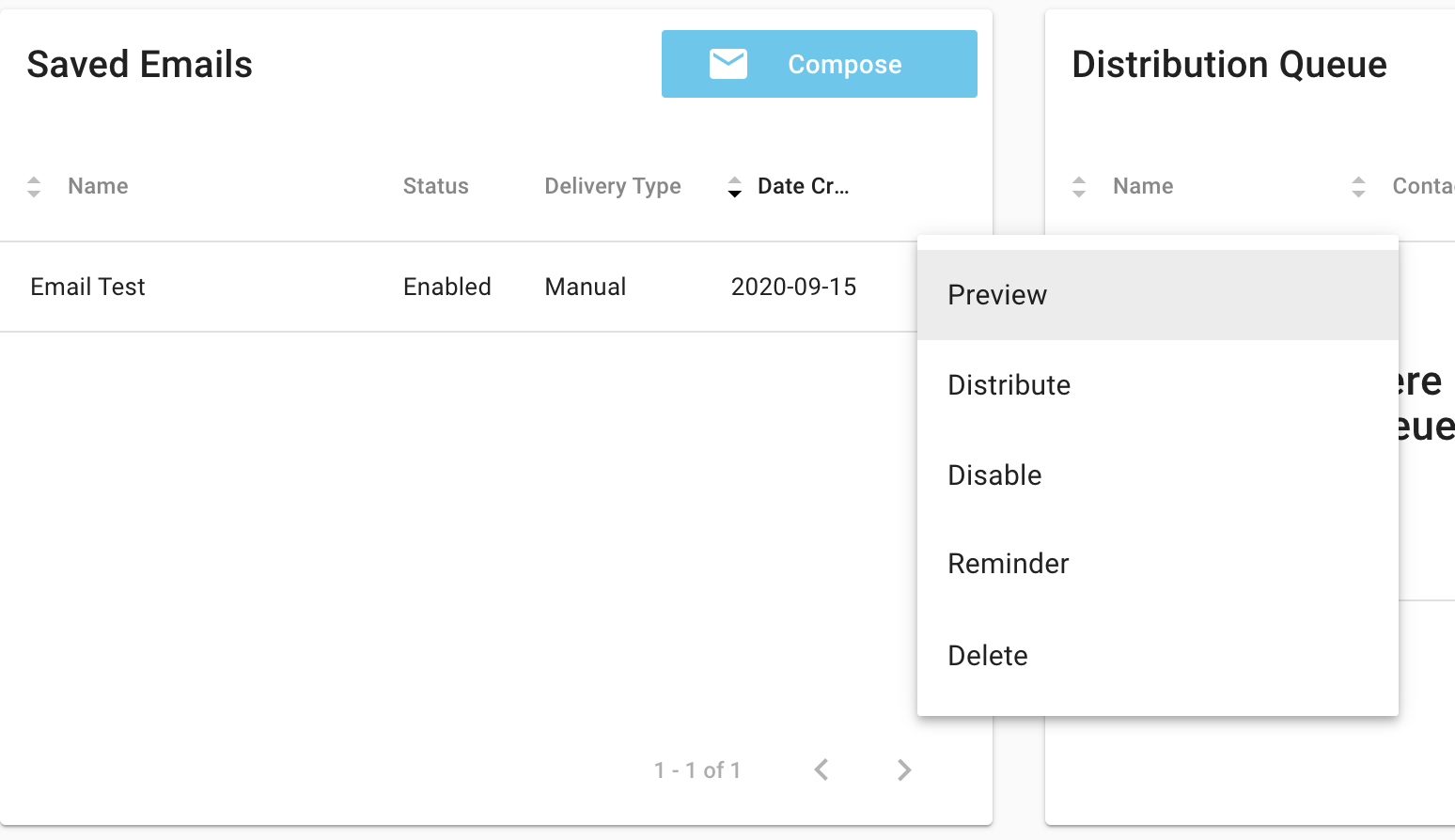
3) From the 'Saved Emails' panel, locate the email distribution that you would like to send 'Reminder' emails on. Click the triple dot (action) menu on this row, then select 'Reminder'.
4) Enter the required details to configure your email:
| Type |
|
| Number of Days |
|
| Set as Auto-Delivery: |
|
| Subject: |
|
| Body: |
|
| Email Footer: |
|
Click on Preview to see what your email will look like to recipients.
Additional information:
- Submission limits and expiration settings will be inherited from the initial email distribution.
- Reminder emails will only be sent to contacts if the reminder email was created BEFORE the email distribution was sent.
- Reminder emails will only be sent to contacts in a survey distribution that have not yet completed the survey.
- Reminder emails will override the fatigue protection setting on your organization. For example, if you have your fatigue protection setting at 14 days but have 7-day reminders set on your email distributions, the reminders will be sent. However, any attempts to send a NEW survey distribution to the same contacts will be blocked.
In order to use the email distribution method, your organization must have contacts and contact lists (with subscribed contacts) set up in the Contact Center.
Be sure to read our Best Practices articles about emailed survey distributions.