Now that you are familiar with the features available in the survey Build interface, you can begin to build your survey form;
This section covers:
The template for a new survey form will have one default section, called Page 1.
Adding a Page
- Add new pages by clicking on + New Page above or below an existing page.
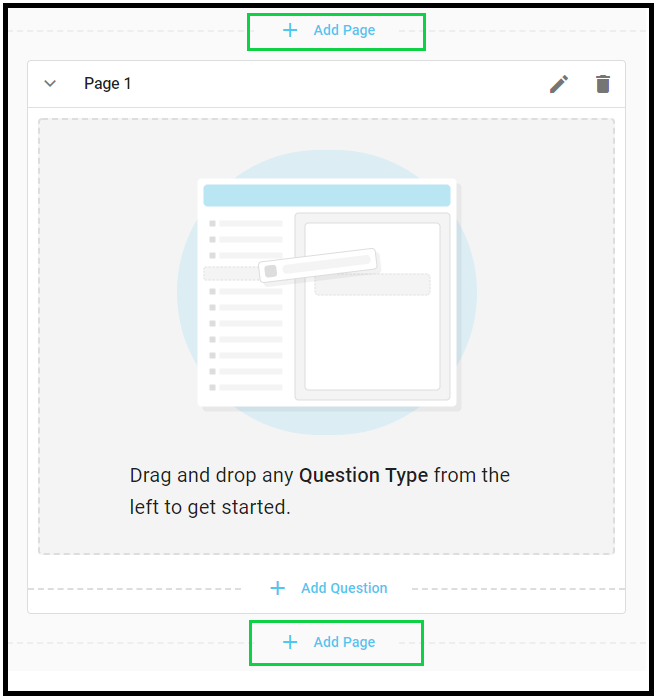
You cannot reorder your survey pages after they have been added, so be sure to set them up in the desired order when you are creating them.
The first page of your survey will not have a Back button, but you can disable the Back button on any of the subsequent pages in your form by checking the setting under the Advanced Options.
Editing a Page
- Click on the pencil icon to edit the page.
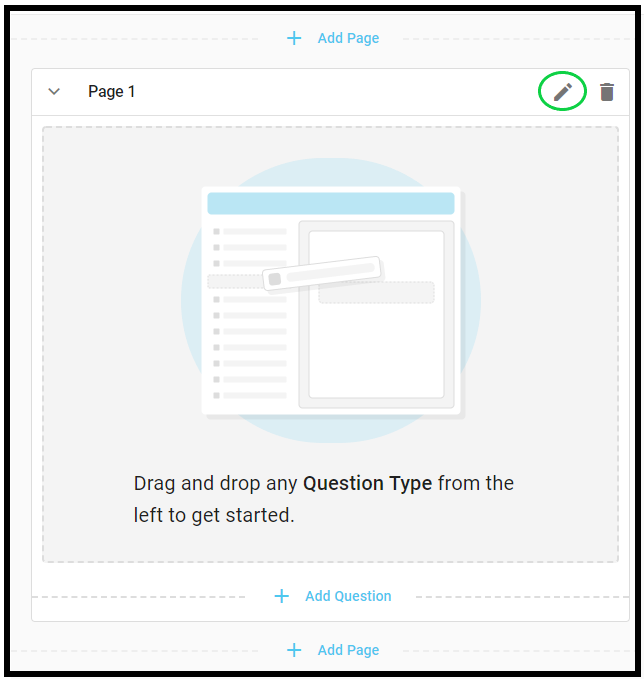
- This will open up the page editor on the left side of the interface.
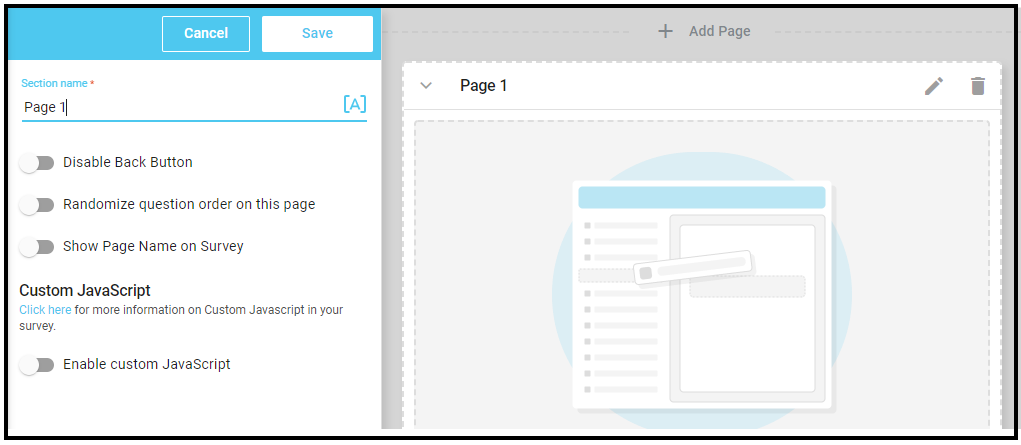
The page editor allows you to enable the following features:
| Disable Back Button | Toggling this button will result in the survey respondent being unable to navigate back to the previous page once they have completed it. |
| Randomize question order on this page |
Toggling this button will cause the questions present on the page to appear in a randomized format |
| Show Page Name on Survey |
Toggling this button will display the name of the page that the survey participant views. |
| Enable custom JavaScript |
Toggling this will allow you to add custom JavaScript elements to the page. |
Click on Save after you have completed making the changes to your preference.
You can create all your survey pages before adding elements to your survey, or you can create and complete one page at a time.