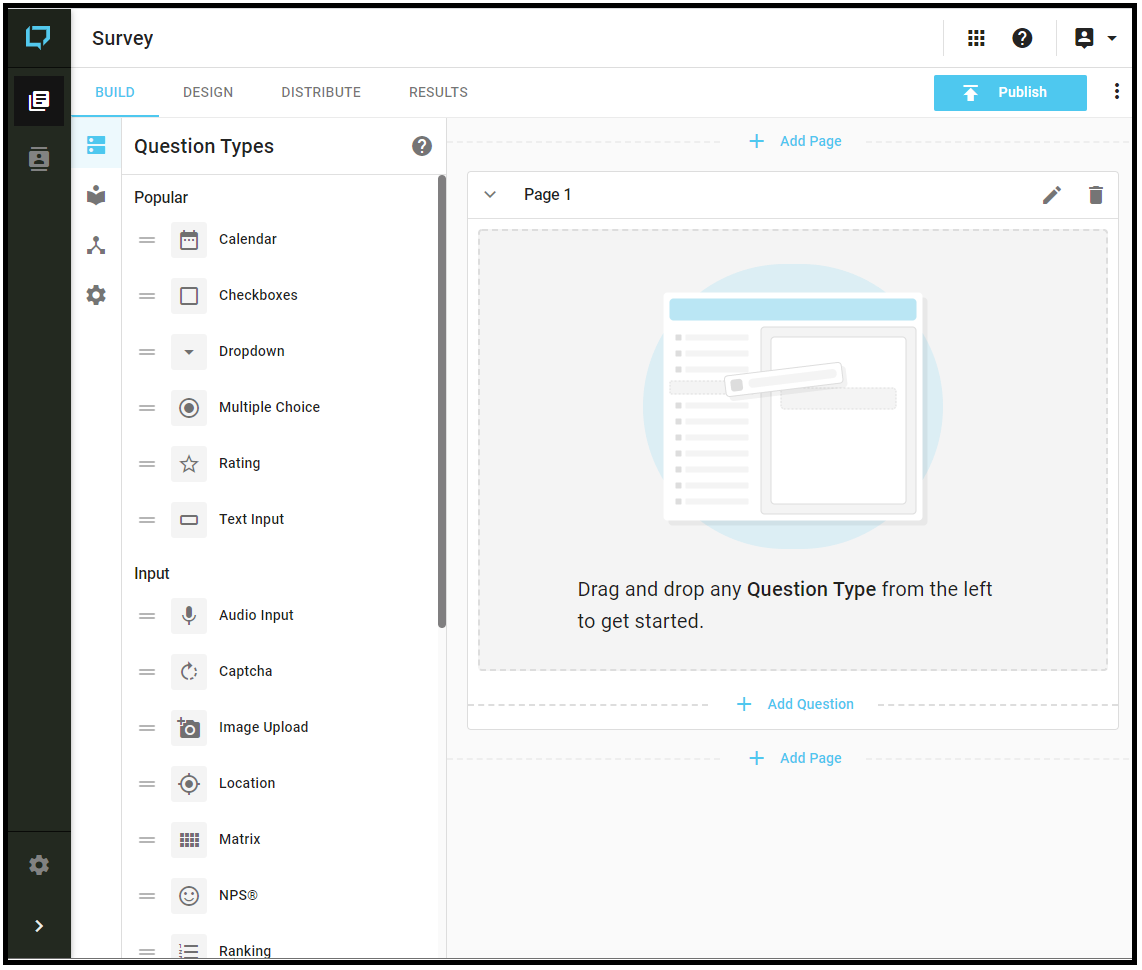
After you've added a new survey, you will immediately be redirected to the survey Build user interface, where you can add pages and elements (e.g. questions) to your survey form.
Jump to information about:
 |
Form Input Panel |
The right-hand pane on the survey Build interface contains the form input area, where you can add sections (i.e. pages) and elements (e.g. questions) to your survey form.
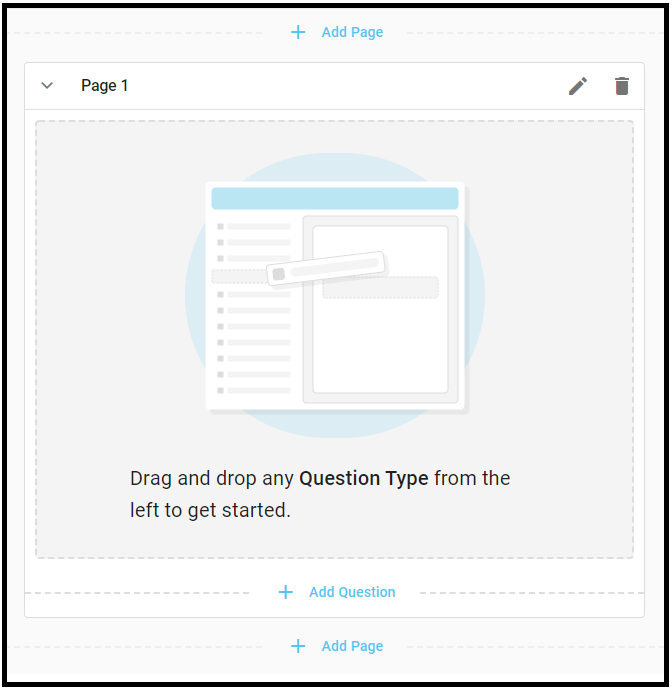
Form Input Panel
Sections and elements/questions can also be edited from the form input interface.
 |
Question Types Panel |
You will find the Question Types menu broken down into the following sections:
- Input
- Display
Input question types are used to capture information from respondents.
Display elements are used to insert text, images, or videos into the survey, or to create question groups in the survey. The elements are to help provide information to the respondent.
- You can drag any of these elements into one of your survey pages on the right-hand pane.
- Once the item is placed into a page, the Question Editor will open up on left-hand pane for that element.
- Complete the required details based on the Question type and then 'Save'.
Pages and elements/questions can also be edited from the form input interface.
Now that you are familiar with the features available in the survey Build interface, you can begin to build your survey form; you will start by adding pages (i.e. pages) and then you will add questions.
When ready, you can move on to the Design tab where you will customize the look of your survey, and also be able to preview the survey in terms of how it will appear to the Survey respondent.