When you are familiar with the features available in the survey Build interface, and understand how to add/edit survey sections, you can begin adding elements (e.g. questions) to your form.
To add an element, drag and drop the element from the left menu into the section, above or below any other questions you've already added.
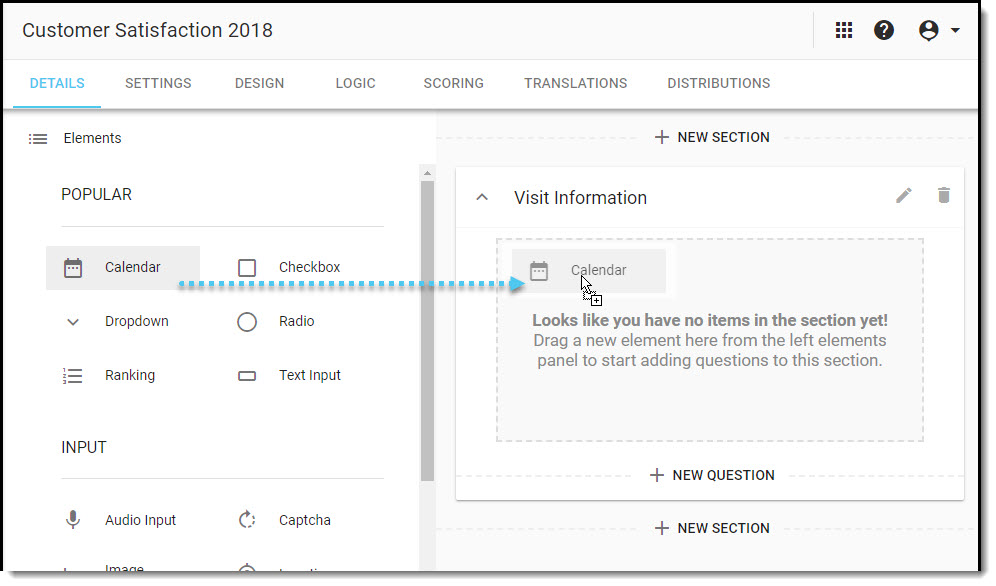
As soon as you drop the element into the section, the element editor will open on the left side of the interface.
Enter the details for the element (e.g. label, answers, etc.), and then click on Save to add the element to your form.
You can also add a new element by:
- Hovering over an existing element and clicking on Add Before or Add After
- Clicking on + New Question on the form input screen
When you add an element using one of these features, the editor will default to the Checkbox question type, but you can select any other type from the drop down menu in the editor.
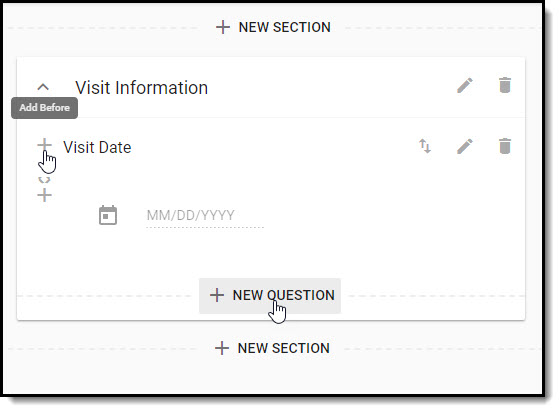
You can also:
- Reorder the elements on your form using the arrow icons
- Edit the element by clicking on the pencil icon
- Delete the element by clicking on the trash bin icon

Questions that have logic applied, JavaScript added, or randomized responses will be flagged with indicators for each.

Overview of Element Types
In the Elements menu, you will find the question types that are most often used under the Popular heading, and all other question types are listed below, under the Input heading.
Below those you will find the Display elements, which are used to insert text, images, or videos into the survey, or to create question groups in the survey.
Popular
 |
Use the Calendar question type to add a date picker to your survey form. |
 |
The Checkboxes question type can have multiple answers, where more than one can be selected. |
 |
The Dropdown question type provides a list of answers, where only one can be selected. |
 |
The Multiple Choice question type can have multiple answers, but only one can be selected. |
 |
The Rating element allows respondents to quickly rate any aspect of your business or service. |
 |
The Text Input element provides a field that is ideal for short comments. |
Input
 |
Use an Audio Input element to allow respondents to record their response to a question. Audio Input will default to a text area if the browser or device does not support audio, or if the survey is being viewed in a language other than English. |
 |
A CAPTCHA element is a type of challenge–response test used in surveys to distinguish human from machine input. |
 |
The Image Upload element allows a respondent to upload an image to the survey. |
 |
The Location element provides respondents with a searchable list of all your locations, so that they can easily identify and choose the location they visited. The survey results will then be associated with that location in the reports. |
 |
Use a Matrix element to ask respondents to evaluate one or more items using the same set of answer choices. |
 |
Add a Net Promoter Score® (NPS®) question to measure the loyalty that exists between your organization and your customers. |
 |
The Ranking question type has multiple answers, which can be dragged & dropped into the preferred order by the respondent. |
 |
Use a Slider element to provide respondents with a scale of numeric responses. E.g. 1 - 10, 0 - 100, etc. |
 |
The Text Area element is ideal for long comments. It can also be used to for sentiment analysis. |
 |
Use a Video Input element to allow respondents to record a video response to a question. Video input will default to a text area if the browser or device does not support video, or if the survey is being viewed in a language other than English. |
Display
 |
Use the Display Text element to add text/instructions to your survey. |
 |
The Graphic element is used to add an image to your survey. |
 |
With the Group element, you can nest a series of questions under a single heading, within a section. |
 |
The Video element is used to add a video to your survey form. |
Learn specific details about setting up each type of element in these articles.
Net Promoter, Net Promoter System, Net Promoter Score, NPS and the NPS-related emoticons are registered trademarks of Bain & Company, Inc., Fred Reichheld and Satmetrix Systems, Inc