|
Use a Matrix element to ask respondents to evaluate one or more items using the same set of answer choices. |
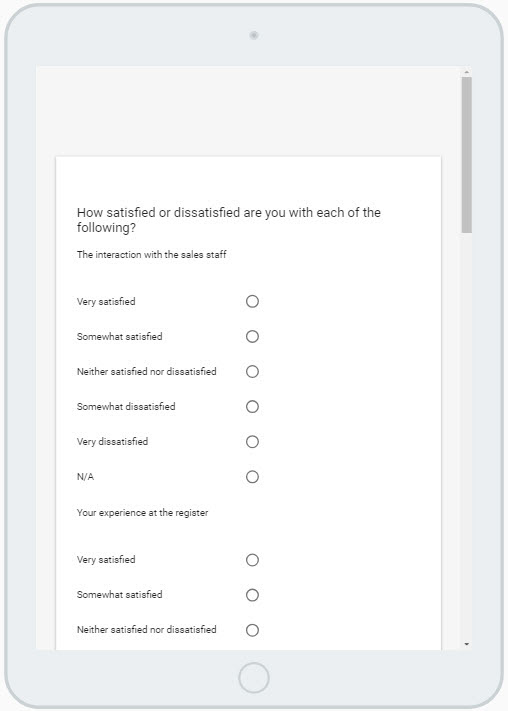
Example of a Matrix Element
Settings
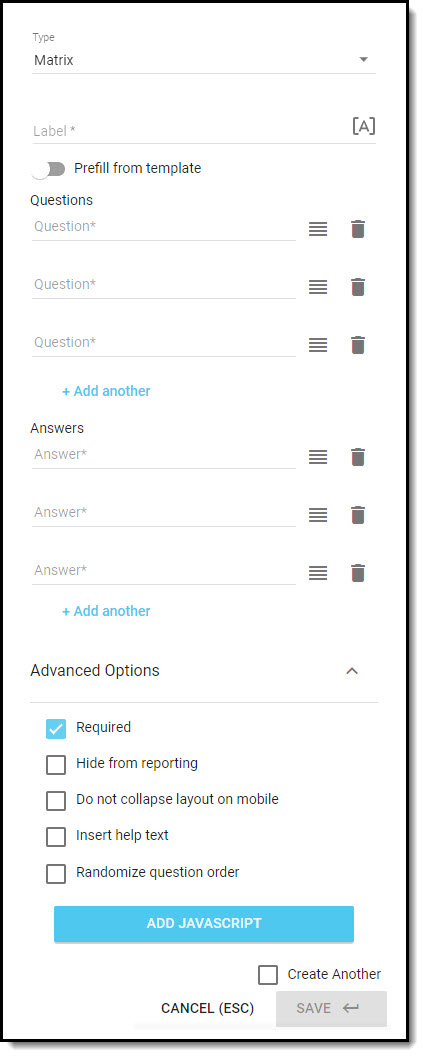
- Enter the element Label; this is displayed to the respondent on the survey.
- [A] Use piped text to insert custom/dynamic content into a question label.
- Several templates are provided to prefill the answer responses on the various elements; if applicable, choose a template. Be sure that the template you choose is appropriate for the element type.
- Enter the text for each question in your matrix in the fields provided; add question fields using + Add Another below the list.
- If you are not using a template to prefill the answer responses, enter the responses in the fields provided; add response fields using + Add another below the list.
- In the Advanced Options, you can:
- Uncheck Required if the element is optional; when this setting is not checked the question will be labelled as Optional on the survey. The Required setting will be turned on, by default.
- Set the element to Hide from reporting; when this setting is applied, only users with View Hidden Fields access will be able to view the data that is collected.
- Check Do not collapse layout on mobile if you do not want the question to be optimized for display on a mobile device. We recommend you leave this setting unchecked; in most cases the default, collapsed layout is preferred.
- Insert help text, which is displayed below the question label, and can be used to provide additional instructions or clarification.
- Check the Randomize question order checkbox if you do not want the questions to always appear in the order they are entered when the survey is viewed.
- Add JavaScript to trigger a behavior or validation on the form, based on certain events tied to the survey or a question.
- Check the Create Another checkbox if you would like to add another element of this type after you save the one you are creating; it will be positioned immediately after the element you've just added.
Click on Save when you have configured the settings for the element.
 |
Delete a question or answer by clicking on the trash bin. |
 |
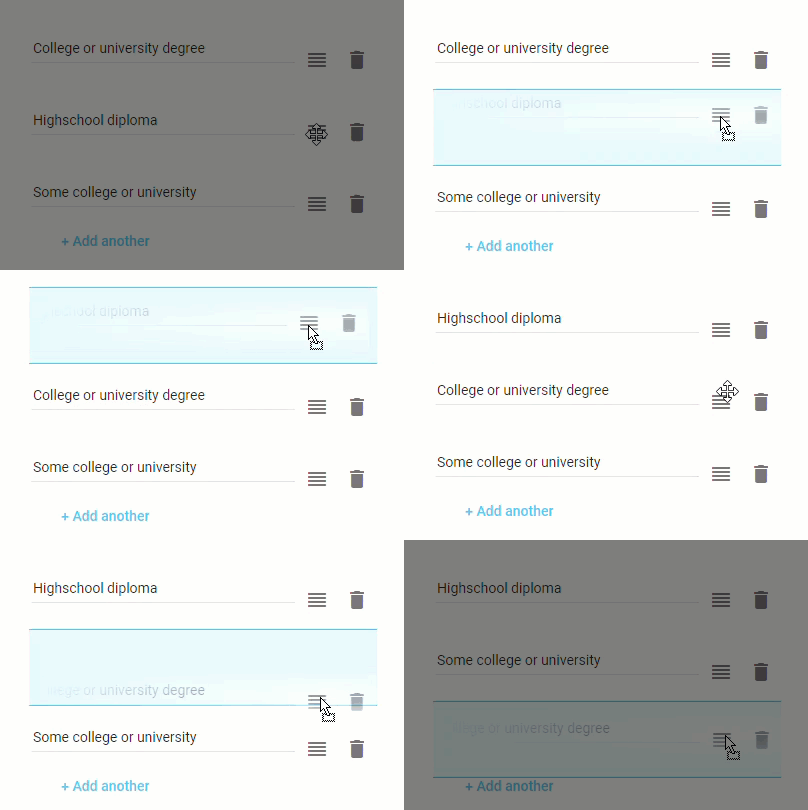
Reorder your questions and answers by dragging & dropping them into position. |