When you are designing your survey, you will have the opportunity to apply a score value to the following element/question types:
- Dropdown
- Multiple Choice
- Rating
- Matrix
- NPS
- Scale
- Slider
Why is scoring your survey responses important?
The scored results on a survey allow your organization to:
- Easily interpret the outcome of the respondent's experience
- Measure the survey results compared to other individual survey results
- Measure the survey results against the aggregate results for all submitted surveys (or a subset of surveys)
Using IntouchIntelligence reports, dashboards, and other available features, scored survey results can - among other things - be used to analyze trends over time, set benchmarks, generate trigger notifications, and drive action such as determining where additional training might be beneficial.
Point values should be applied to all questions on a survey that measure a standard or ask for the respondent's opinion or feelings.
This will allow you to see:
- An overall score for the submitted survey, which will indicate, at a glance, the respondent's overall experience
- Section scores for the submitted survey (assuming you have more than one section on the form)
- For example, you might have a Customer Greeting section, Sales Staff Interaction section, Cash Counter section, etc., and the scores for each will represent the aggregate results of all the scored questions in that section
- Question-level scores on the submitted survey
The point value you assign to each response on a question should be based on the importance of the criteria that is being measured.
For example, you might set questions related to the ease of finding a product at 1 point, and any questions measuring more critical standards, such as customer engagement or a net promoter score, could be set at 5 points.
Questions with higher point values will, of course, have a greater the impact on the overall and section scores of your survey form.
Setting up survey scoring is easy!
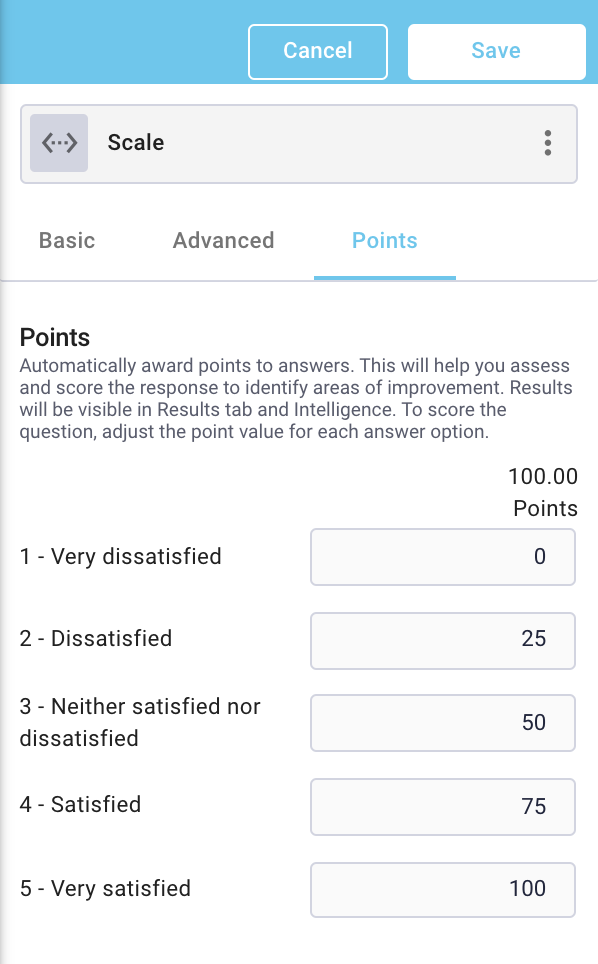
When creating or editing an applicable question, navigate to the Points tab. Set a point value for each response (Dropdown, Multiple Choice, Matrix, Scale):
or a multiplier (Rating, NPS, Slider):

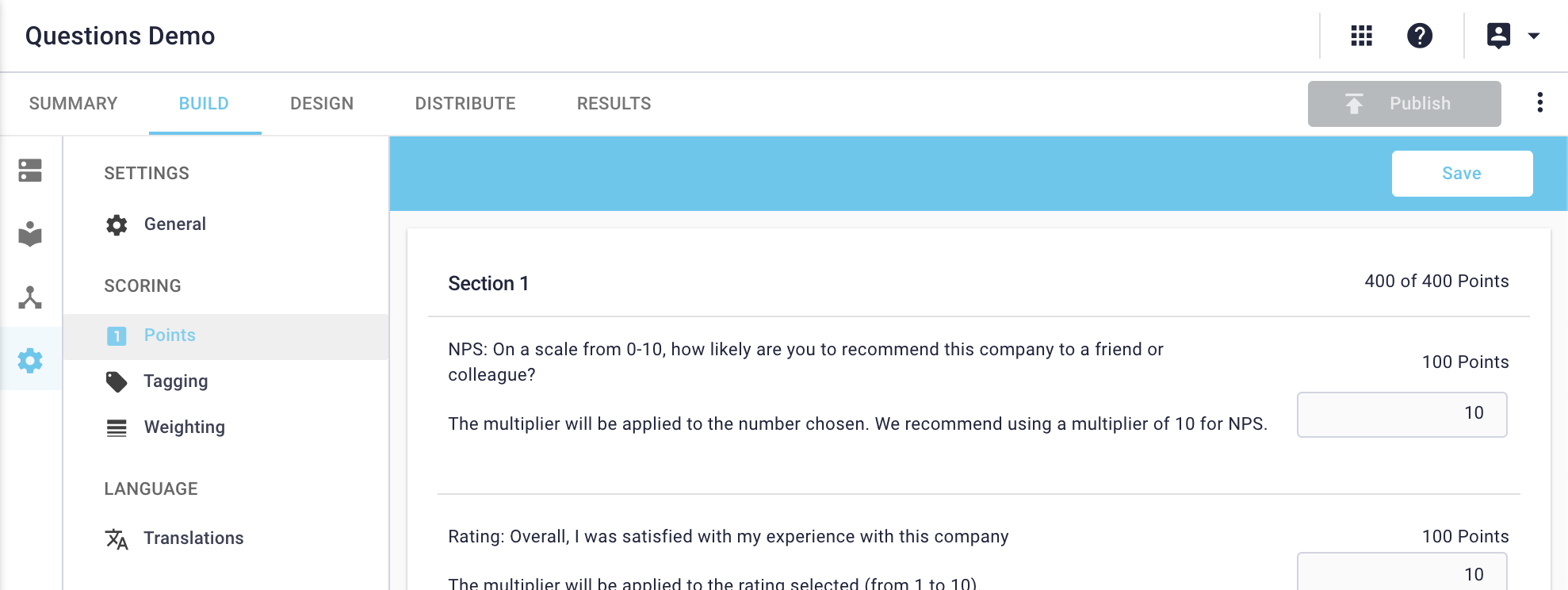
To see the accumulated point total for each section as well as the entire form, or to make updates to multiple questions, navigate to the survey settings, and select 'Points' within the scoring menu.